Download Roblox For PC & Mac (Official Methods + Optional Emulator)
Tired of playing Roblox on a small phone screen? On a PC, Roblox feels better with a bigger display and smoother controls. The best way to Download roblox for pc is to install it from official sources for stability and security. This guide covers how to download and install Roblox on Windows 10/11 using official methods, and then an optional emulator method for users who specifically want the Android version this is where Roblox apk for PC may be used inside an emulator setup. Follow the steps below to install Roblox, update it properly, and fix common PC problems fast.
This article will walk you through the easy steps to download and install Roblox on your PC safely. We will address everything from locating the correct official website/app to download Roblox for free, installing it safely, and fixing common PC issues like launch errors and update loops. You will be ready to play Roblox on your PC and will enjoy an improved gaming experience without spending any money. Let us start here.
Roblox for PC (Windows 10/11) Official Download
Roblox can be installed on Windows using official methods that are safer and more reliable than random downloads. You can install Roblox from the Roblox website or use the Microsoft Store app on Windows 10/11.
Choose the method below that works best for your setup.
Method 1: Install Roblox from Roblox.com (Browser Method)
Method 2: Install Roblox from Microsoft Store (New Roblox App)
Roblox also offers a new, improved Microsoft Store app for a smoother and more reliable experience.
Roblox for Mac (Official Method)
Minimum (official):
- Go to roblox.com and log in.
- Open any game and click Play.
- The site will ask to install Roblox Player — allow it.
- Once installed, you can play by clicking Play again.
Note: Works on macOS 10.13 (High Sierra) or later.
Roblox PC System Requirements
Minimum (official):
- OS: 64-bit Windows 10 or Windows 11
- RAM: 1 GB minimum (more recommended)
- GPU: DirectX 10+ support
- Storage: ~300 MB free space
Recommended (better experience):
- 8 GB RAM (especially if using an emulator)
- Dedicated GPU (if possible)
Roblox for Windows 7 / 8.1 (Is it supported?)
Roblox’s official PC requirements list 64-bit Windows 10 or Windows 11. If you’re on Windows 7 or 8.1, upgrading is recommended for compatibility and security.
Why Play Roblox on PC?
Playing Roblox on PC gives you better control and a smoother experience, especially with a keyboard and mouse. You also get more stable performance on larger screens, plus easier multitasking with Discord, browsers, or screen recording tools.
For the best results, use the official Roblox installer on Windows and keep your system updated. How do you get started? The first step is choosing the right and safe download source so you can install Roblox without errors. On older or low-end computers, some players also look into Roblox old versions.
If you want to play standard Roblox on Windows 10/11, the safest option is to download it from the official Roblox website or the Microsoft Store. Some users search for ‘Roblox APK for PC,’ but APK files are for Android. On a computer, the Android version only works through an emulator. Once you install Roblox the right way, you can sign in, update normally, and start playing.
Do You Need an APK for Roblox on PC?
Before downloading anything, it helps to know this: Roblox for PC does not require an APK. The cleanest way to install Roblox on Windows is through official channels, because they’re updated automatically and far less likely to cause install/update errors.
An Roblox APK is an Android app file, so it only becomes relevant if you’re using an Android emulator on your computer. If you choose that optional route, stick to reputable emulator software and avoid modified APKs—those are the most common cause of security/account problems and random crashes.
Using an Emulator to Download Roblox On PC:
Remember the thrill of a larger screen, smoother gameplay, and all the extra benefits? An emulator lets you run Android apps on a PC by simulating an Android environment.
This method is optional and mainly useful if you specifically want the Android version of Roblox on desktop.
For most users, the official Windows install is the simplest and most reliable option.
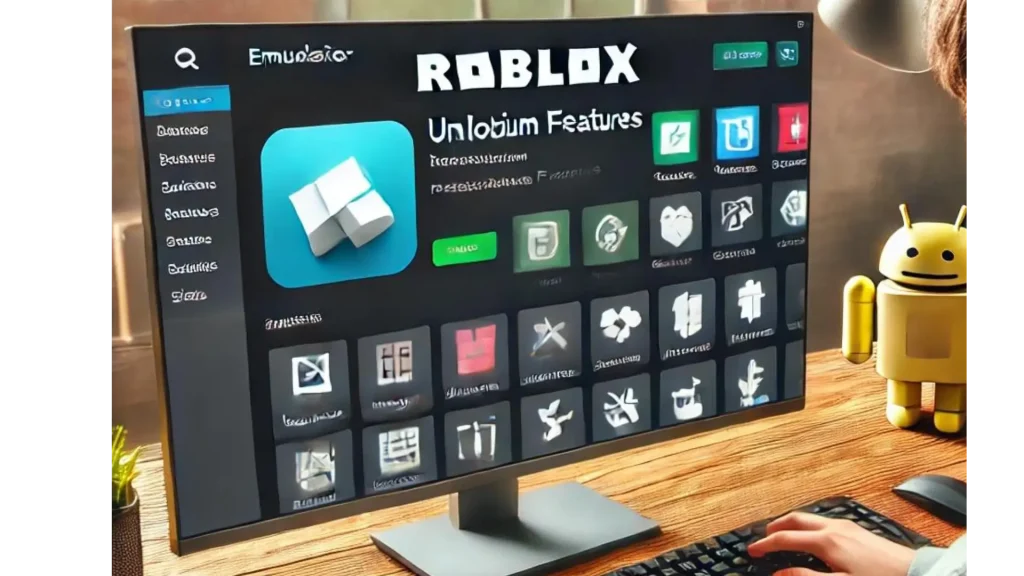
Step by Step Guide to Install Roblox from Google Play Store
In this section, you’ll learn how to install an emulator, set it up, and run the Android version of Roblox on PC.
If you get lag or crashes, use the troubleshooting tips below to improve performance.
If you don’t need Android, skip the emulator and use the official Windows methods above.
There are several popular emulator options out there, each with its strengths. BlueStacks is a top choice for gamers because of its user-friendly interface and reliable performance. NoxPlayer is another great option. It is known for its speed and lightweight design, which makes it perfect for running pc versions of games. And if you’re looking for something specifically tailored for gaming, LDPlayer offers optimized settings for a seamless experience.
After deciding on your emulator, follow these guidelines:
Install the Emulator
After downloading, open the installer and follow the on-screen directions. It’s as easy as installing any other program on your PC.
Set Up the Emulator
Once the emulator is installed, launch it and sign in with your Google account to access the Play Store.
Install Roblox in the Emulator (Play Store Method)
After installing the emulator, open it and sign in with your Google account.
Then open Google Play Store, search Roblox, and click Install.
This is the safest method because it avoids unknown APK files and reduces the risk of malware or account issues.
Launch Roblox and Sign In
After installation, open Roblox in the emulator and sign in to start playing.
If you notice lag, lower graphics settings and close heavy background apps to improve performance.
Keep Roblox and your emulator updated to reduce crashes and update-related errors.
Safety note: Only download emulators from their official websites and install Roblox from Google Play Store inside the emulator.
Roblox Install For Pc
Now open Roblox and start playing (No APK needed).
Once Roblox is installed from the Google Play Store inside your emulator, open it, sign in, and play. If Roblox crashes or won’t update, uninstall it inside the emulator and reinstall it from the Play Store.
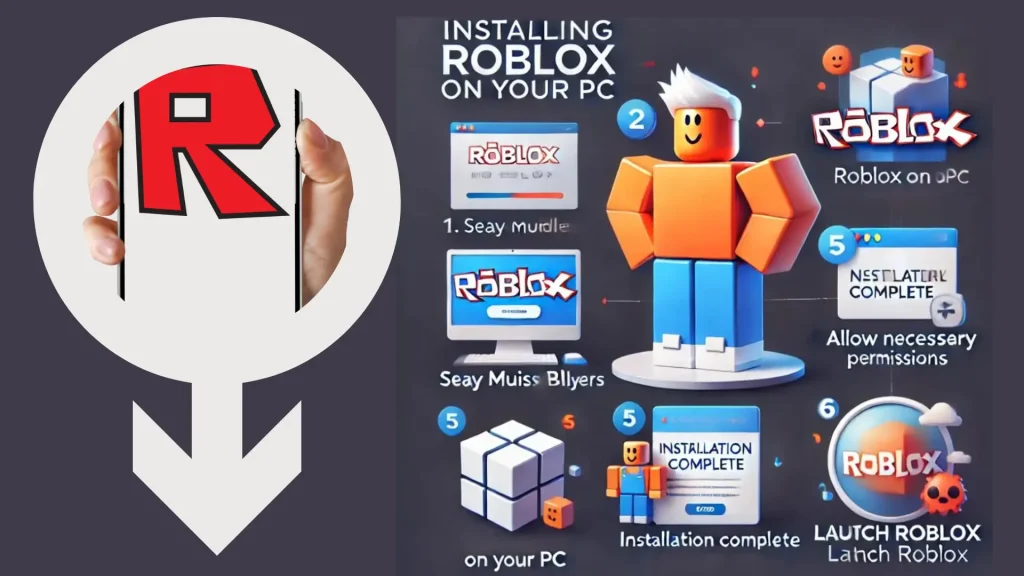
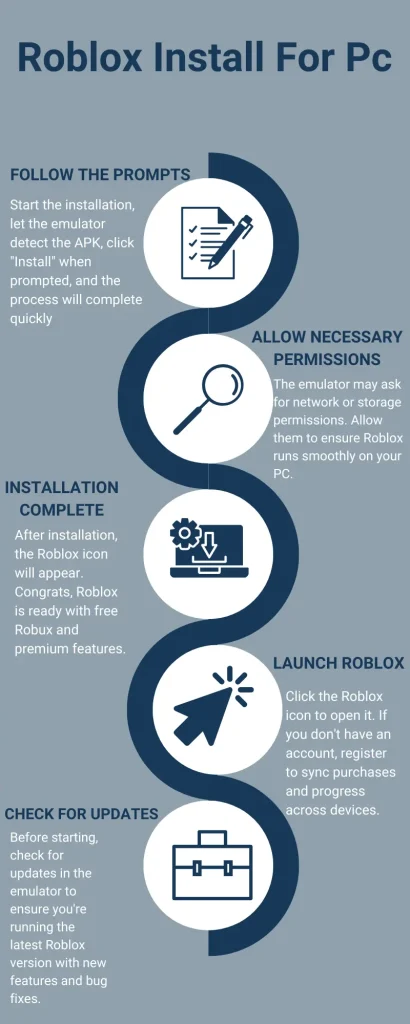
Follow the Prompts
When you start the installation from the Play Store, the emulator will download and install Roblox automatically. Although you will find a progress bar or some on-screen cues, the process is quick and easy. Click “Install” as asked, then let the emulator handle things.
Allow Necessary Permissions
Like an Android device, the emulator might ask for specific permissions throughout the installation. These permissions relate to network or storage access. Allow these permissions so Roblox can run properly on your PC.
Installation Complete
Once installation finishes, the Roblox icon will appear on the emulator home screen or app drawer.
Roblox is now ready to launch—sign in to your Roblox account and start playing.
If anything fails to load, restart the emulator and check for updates.
Launch Roblox
To access the Roblox icon, click it. If you do not already have a Roblox account, you may have to register or create one the first time you launch it. This is an important step since it syncs your purchases and game progress across devices.
Check for Updates
Before starting the game, it’s smart to check for any updates within the emulator. This helps ensure you’re running the most up-to-date Roblox version, including the latest features and bug fixes. To get the best experience, make sure everything is set up correctly before you start playing.
Did You Know About Roblox Online Play
For those who want to experience Roblox online play without having to download anything, Play Roblox in a browser using now.gg, a third-party cloud gaming site. It’s optional and not the official Roblox method. Here you can play Roblox in your browser via now.gg (third-party), without installing anything.
Roblox Steam
Roblox is not officially distributed on Steam as a native Steam game.
However, you can add Roblox as a non-Steam shortcut if you want to launch it from your Steam library.
For downloading and updates, always use official sources like Roblox.com or Microsoft Store.
Create or Sign In to Your Roblox Account:
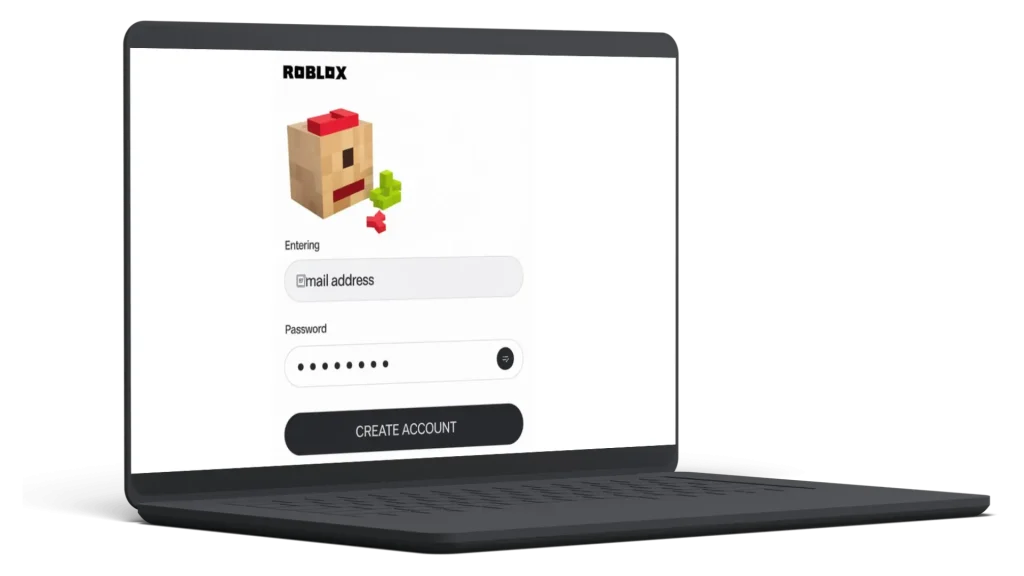
Before you start playing, sign in to your Roblox account or create a new one.
Your account saves your progress, friends, and purchases across devices.
Avoid any “free Robux” or “Robux generator” claims—these are often scams and can risk your account.
Your progress will sync automatically as long as you use the same Roblox account. This also applies if you switch to Roblox for iOS later just sign in with the same account.
Enable 2FA and link your email/phone to protect your account from unauthorized access.
Signing In to Your Existing Account:
If you already have a Roblox account, click the “Login” button upon game launch. Enter your password and username to log into your account. Your in-game progress, items, and friends are kept here so you can pick up exactly where you left off on any device.
Creating a New Account:
Starting fresh, or if you’re new to Roblox, is simple: create a new account. See the “Sign Up” button on the login screen. You must enter some simple information, including your birthday, a distinctive username, and a safe password. Please choose a username you enjoy since it will be shown to other users and represent you in the Roblox universe. After entering your details, you may be asked to verify that you’re not a bot. Once that is finished, your new Roblox account will be ready, allowing you to personalize your avatar and explore the game.
Syncing Your Progress Across Devices
One of the fantastic things about Roblox is that your account syncs across all devices. Whether you’re playing on your phone, tablet, or PC, your progress and items follow you. This means that even if you switch devices later, your progress will stay synced as long as you use the same Roblox account.
Securing Your Account
Linking your email or phone number and enabling 2FA helps protect your account from unauthorized access. By signing in or creating a new account, you were set up and ready to enjoy everything Roblox offers on your PC. Next, we’ll cover how to optimize your settings for smoother, more enjoyable gameplay.
Optimizing Your Settings For Smooth Gameplay
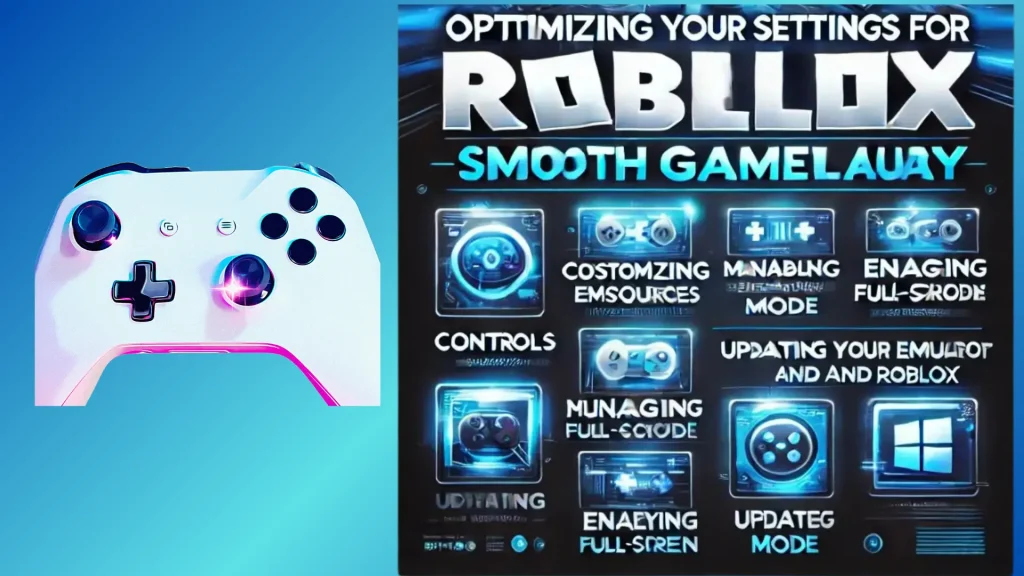
After setting up your Roblox account, optimize your settings for smooth gameplay. Adjust graphics based on your PC—lower them if lagging or increase for better visuals if your PC allows. Customize emulator controls to make them feel natural, helping in fast-paced games. Free up resources by closing unnecessary apps and allocating more RAM or CPU through the emulator. Play Roblox in full-screen for better immersion and performance.
Also, keep your emulator and Roblox updated for optimal performance. These simple tweaks ensure your experience remains seamless, fun, and distraction-free.
Troubleshooting Common Issues of Roblox For PC Download
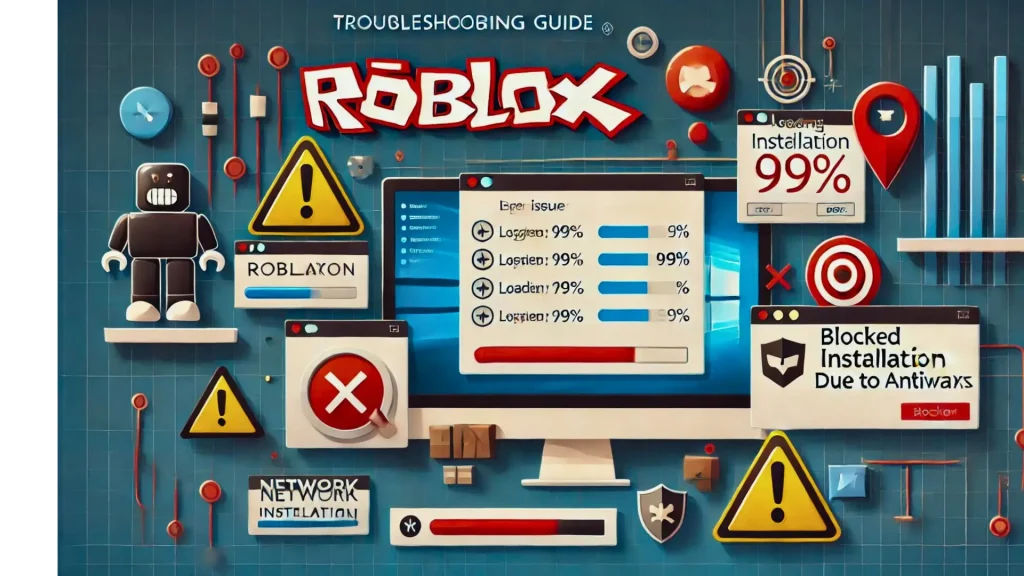
Even with a well-optimized setup, running Roblox through an emulator may present some challenges. Here are common issues and their solutions:
Dealing with Lag or Stuttering
- Check your internet connection; use a wired connection or reset your router if necessary.
- If the connection is stable, reduce graphics settings, close background apps, or allocate more resources to the emulator.
Fixing Emulator Crashes
- Ensure your graphics drivers and emulator are up to date.
- Clear the emulator cache through its settings to resolve issues caused by temporary files.
Resolving Installation Problems or Roblox Updates
- If you’re using an emulator, install Roblox from the Play Store. If Roblox is broken or keeps crashing, uninstall Roblox inside the emulator and reinstall it from the Play Store.
- If issues persist, reinstall the emulator or switch to a different one, such as from BlueStacks to NoxPlayer.
Audio and Visual Glitches
- Update your graphics and sound drivers.
- Adjust the emulator’s audio or resolution settings, and enable compatibility options if available.
Account Login Issues
- Confirm you’re entering the correct username and password.
- If there are server issues, wait and try logging in later.
Most of these issues can be fixed with simple tweaks, allowing you to continue enjoying Roblox on your PC smoothly.
What’s New in Roblox Voice Chat for 2026?
Roblox Voice Chat is available in supported experiences for eligible users (typically 13+) after verification and enabling Voice Chat in Communication settings. Availability can vary by region and by game.
If you don’t see the option, update Roblox, check your account eligibility, and try a voice-enabled experience.
Premium Content (Paid)
Roblox is free to download and play, but some experiences offer paid items, game passes, or Roblox Premium subscription perks. Premium content is not free—always buy it inside Roblox using your own account to stay safe and avoid bans.
Creating and Sharing On Roblox For PC
Roblox is well-known for user-generated content, but premium features enable even more creativity. Share your work with the community and employ more sophisticated tools to create increasingly complex worlds. Some of the premium features could be extra building blocks, special effects, or even special scripting choices, allowing you to create unique experiences.

Roblox APK Download For PC Enhanced Gameplay
While adding premium features makes the game even more immersive, the graphics are better when you play Roblox on a PC, and the controls run more smoothly. Whether it’s gaining access to special abilities in some games, playing games free of advertising, or accelerating development in your preferred worlds, the premium features make your time on Roblox even more fun.
Paid Items and Premium
Some Roblox experiences may offer paid items, game passes, or Premium perks. If you want those, buy them only inside Roblox using your own account.
Connecting with the Community
Roblox helps you connect with communities of players. Join elite groups, chat with other top players, and participate in events typically only open to paid members. This allows you to meet new people and collaborate with those who share your passion for the game.
With all these premium PC capabilities, navigating Roblox will take your gaming to a new level. Roblox lets you maximize your time, whether creating, playing, or interacting with others. With all these PC benefits, navigating Roblox can feel smoother and more enjoyable. Explore new worlds, create content, and enjoy the full experience using official Roblox installs and your own account.
FAQs
Conclusion
As you get ready to start Roblox on your PC, remember that you are entering a world where your imagination and abilities will shine rather than merely engaging in a game. Whenever you discover a new planet, create something amazing, or interact virtually with friends, the work you invest in organizing this experience will pay off.
This is about unleashing the full potential of what Roblox offers, not only improving your gameplay. The options are unlimited so that you can use these fresh tools and features.
So click that icon, launch the game, and let your imagination fly. Your improved experience is waiting to play roblox and games like roblox , whether your goals are building, exploring, or just having fun. Enjoy every moment of Roblox for PC, and remember that your trip to Roblox’s large and always expanding universe is just beginning.